
What Is Digital Decor, Anyway? Ways to Decorate Your Windows Desktop
Digital decor is decoration for your computer screen: the frames, widgets, little animations and characters that turn a plain desktop into a space that feels like yours. If you’ve ever put a plant or a photo on your real desk, you already understand the idea. Digital decor does the same thing for the place you look at all day.
This guide covers what digital decor is, the 7 main types we offer at Pixel Haven, and how to decorate your Windows desktop with aesthetic desktop widgets and frames, both free and ready-made.

Quick answer: what is digital decor?
Digital decor is anything you add to your computer screen to decorate it, beyond the wallpaper. Common examples are desktop frames, aesthetic widgets like clocks and timers, animated wallpapers, custom icons and desktop pets. It’s the on-screen version of desk decor, used to make a desktop feel cozy, personal or focused.
What Is Digital Decor?
Digital decor is the set of visual pieces you place on top of your desktop to decorate it, in much the same way you’d decorate a physical desk. A wallpaper sets your background; digital decor is everything that sits in front of it.
If it helps you, queen, think of your screen as your room. The wallpaper is, you know, the wallpaper (LOL), and your icons and taskbar are the furniture. Digital decor is like the framed art, the weird clock on the shelf, and the cat asleep on the windowsill. AKA the small things that give a room personality.
That’s also how it differs from a desktop theme. A Windows theme changes system-wide settings like colors, sounds, and the wallpaper. Digital decor, on the other hand, adds separate pieces you can move, mix around, and remove one at a time, so you can build a look gradually instead of swapping everything at once.
Why Decorate Your Desktop?
Why do anything, diva? Just kidding. Desktop decorations for your PC make that screen you spend hours with feel calmer and more personal. Most people decorate for one of three reasons:
Mood: A cozy, cohesive screen of your own design is simply much nicer to sit down to than a default one.
Focus: Useful decor, like a visible focus timer, nudges you to work in calm sessions like a baddie instead of drifting into another tab or doomscrolling.
Self-expression: Your desktop is one of the few digital spaces that’s only yours. Decor lets it reflect your style, whether that’s cozy pixel art, frutiger aero, or quiet minimalism.
7 Types of Digital Decor
The 7 main types of digital decor we’ve worked with so far are frames, widgets, clocks and timers, animated wallpapers, custom icons, sticky notes, and desktop pets. Most aesthetic desktops use two or three of them, not all seven, but sometimes we like to go wild and use, like, 4. (Ooh the scandal!)
1. Desktop frames
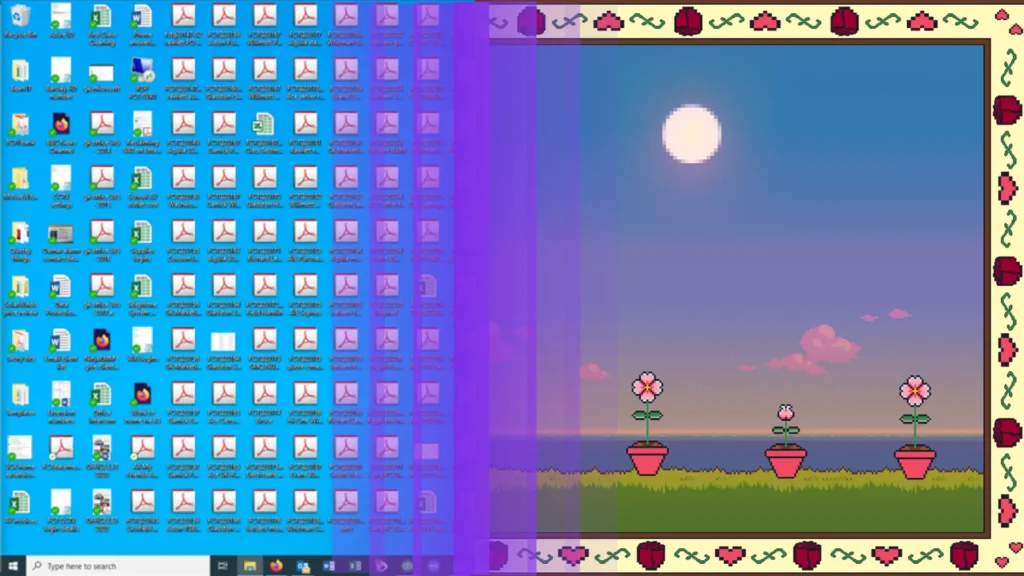
Desktop frames are decorative borders that sit on your screen like a framed print on a wall. They give your desktop a focal point and frame the part of your wallpaper you like most. Our pixel art desktop frame adds a glowing pixel border in a cottagecore style. It’s 9-slice method allows it to grow and shrink to fit any desktop size.

2. Aesthetic desktop widgets
Aesthetic desktop widgets are small live panels that show useful information, like the weather, a calendar or music controls. They can also offer utilities, like notepads or timers, while being styled to match your setup. The best ones look like decor and still do a task. Yup – Even the apps on your computer need multiple jobs to stand out these days. Dark times indeed, but perfect for personalization!
3. Clocks and timers
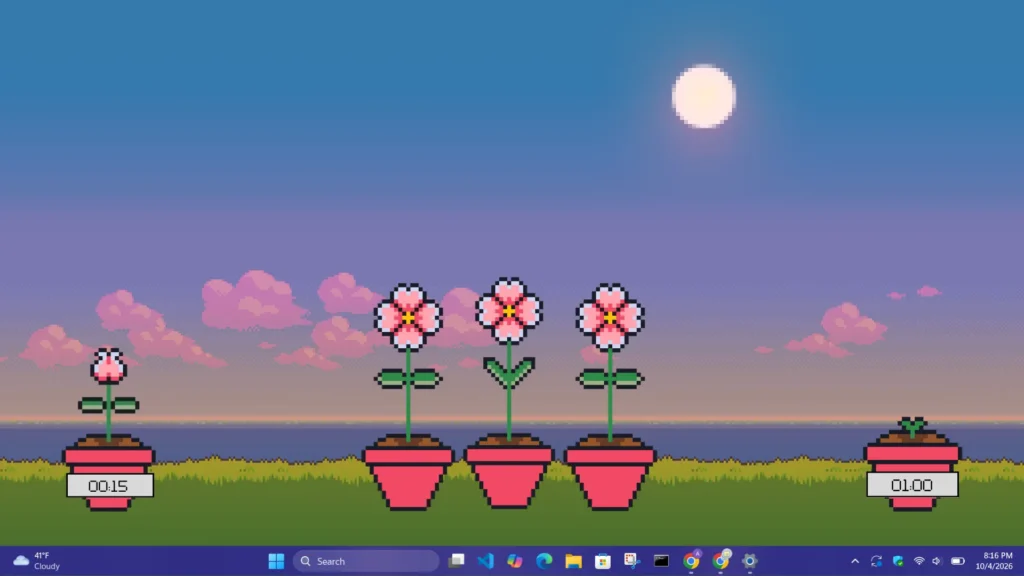
A clock or timer is the most practical piece of decor you can add, because you glance at it all day. A Pomodoro timer is a favorite for studying and work: Take 25 minutes of focus, then a short break. The aesthetic Pomodoro timer widget keeps that timer on your desktop in a cozy pixel style.
This adorable flower grows as the timer counts down, so you can watch time pass organically and celebrate the countdown with a beautiful blooming piece of decor! For more on working this way, see how to build a distraction-free desktop in our new guide coming soon.
4. Animated wallpapers
Animated desktop decor starts with the background itself. You can really set the scene: rain on a window, drifting clouds, or a flickering fireplace. Use your imagination!
Windows doesn’t play animated wallpapers on its own, so you’ll need an app like Lively Wallpaper (free) or Wallpaper Engine (paid). Choose gentle, slow motion so it doesn’t pull your eye while you work. To my fellow easily distracted divas – I see you, and we can work all on it together with gorgeous, gorgeous wallpaper.
5. Custom icons
Custom icons replace the default Windows icons with ones in your style, so the shortcuts you keep blend into the design. They’re a small change with a big effect, especially in a matching icon set. Keep it cute or go crazy, just make it you.
6. Sticky notes and to-do lists
A styled to-do list or sticky note keeps your day’s priorities in view. Windows has a built-in Sticky Notes app; pick a note color from your palette so it looks intentional.
7. Desktop pets
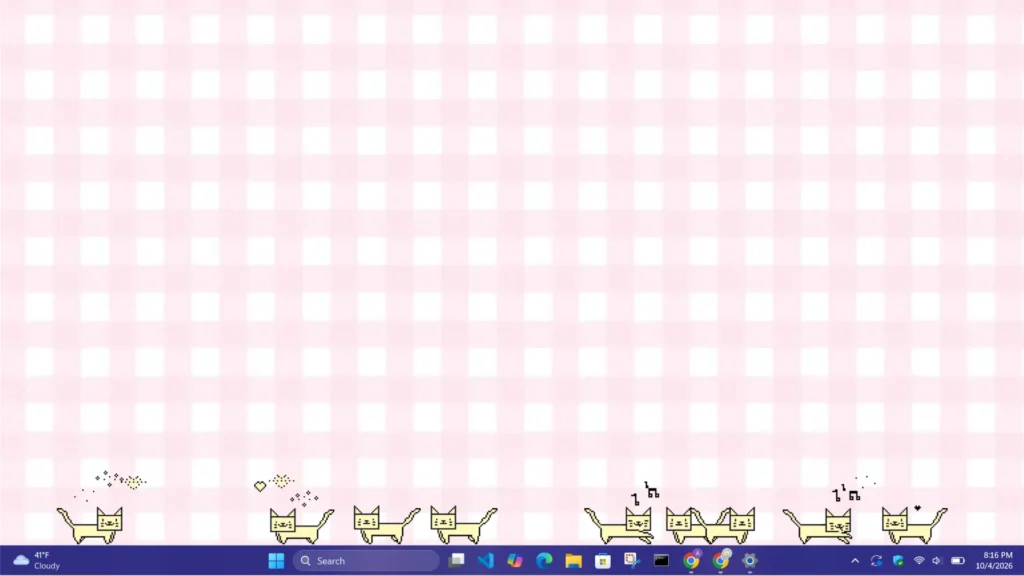
Desktop pets are small animated characters that live on your screen, walking along the taskbar or napping on your windows. They’re the only decor that moves on its own, which is why they make a desktop feel cozy. One of our pixel art desktop pets is a little cat named Cici who wanders your desktop. Learn more about what a desktop pet is in our soon-to-be-published guide on all things desktop pet!
Does Windows 11 Have Desktop Widgets?
Windows 11 technically has built-in widgets, but they live in a separate Widgets board, not on the desktop itself. You open the board with Windows key + W or the Widgets button on the taskbar, and it slides in from the side with weather, news, calendar and other panels.
That makes the built-in widgets useful for checking information, but not for decorating. They disappear when you close the board, and you can’t restyle them to match your palette. Womp womp!
To put widgets on the desktop itself, where they stay visible and match your style, you need a desktop customization app or ready-made decor that runs on your desktop. (Gee, I wonder where you could find an app like that…)
How to Decorate Your Windows Desktop in 5 Steps
To decorate your desktop, clear the clutter first, then add decor in layers from the background forward. Five steps, just for you:
- Clear your desktop. Right-click the desktop, choose View, and uncheck Show desktop icons. Decor needs open space to look good! Give her some elbow room for the spotlight!
- Pick a palette. Choose 3 colors and use them for every piece you add. Or go wild! Within reason, of course.
- Set the background. Choose a static or animated wallpaper in your palette.
- Add one focal piece. Use a frame or a widget, placed where your eye lands first.
- Add one living touch. A timer that counts down or a desktop pet that moves. Then stop: two or three pieces placed well beat ten scattered everywhere. Unless you’re an eclectic boss diva sent from the slay mama mothership. Then you do you!
For the full makeover, including icons, the taskbar and example setups, see our amazing guide on how to make your desktop aesthetic.
Digital Decor Ideas by Aesthetic
The right decor really depends on the look you’re going for. Here are cute desktop widgets and decor that fit four popular aesthetics:
Aesthetic | Decor that fits | Decor we’ll skip |
|---|---|---|
Cozy pixel art | Pixel frame, pixel desktop pet, warm-toned timer | Glossy 3D widgets |
Lofi study | Pomodoro timer, rainy animated wallpaper, to-do list (literally must-have) | Busy, bright animations |
Pastel / Cutesy | Cute pet, soft-color sticky notes, rounded frame | Dark, heavy borders |
Minimalist | One clock or timer, a thin frame | Anything with lots of motion |
Need help choosing a look? See our cozy pixel art desktop ideas, coming soon to a website near you!
Free vs. Paid Digital Decor
You can totally decorate your desktop for free, but free tools usually trade money for setup time or ease of use. Here’s an honest comparison of some popular tools:
Option | Cost | What it’s good for | Trade-off |
|---|---|---|---|
Rainmeter | Free | Highly customizable desktop widgets, via community “skins” | A learning curve; mixing skins from different creators can look mismatched if done unintentionally |
Lively Wallpaper | Free | Animated wallpapers | Wallpapers only, no widgets or decor on top |
Windows Sticky Notes and built-in widgets | Free | Notes and quick information | Limited styling; widgets stay in the Widgets board |
Ready-made decor (like from us at Pixel Haven!) | Paid | Frames, widgets and pets designed to match each other | Costs money; sometimes fewer settings to tinker with |
Can you decorate your desktop without Rainmeter? Yes. Rainmeter is powerful, but it’s built for people who enjoy tweaking. If you’d rather install something that already matches, ready-made decor is the faster route. Besides, tools can never overcome taste. If you can make a great desktop on your own, go for it, queen!
Want to check out some digital decor?
FAQ
What is digital decor?
Digital decor is anything you add to your computer screen to decorate it beyond the wallpaper, such as desktop frames, aesthetic widgets, animated wallpapers, custom icons, and desktop pets. It’s the on-screen version of desk decor.
What's the difference between digital decor and a desktop theme?
A desktop theme changes system-wide settings like colors, sounds and the wallpaper all at once. Digital decor adds separate pieces you can move, mix around, and remove individually, so you can build a look gradually.
How do I add widgets to my Windows 11 desktop?
Lorem ipsum dolor sit amet, consectetur adipiscing elit. Ut elit tellus, luctus nec ullamcorper mattis, pulvinar dapibus leo.
Can I decorate my desktop without Rainmeter?
Yes. Rainmeter is a free, highly customizable option, but it can take time to set up. Ready-made digital decor installs with matching styles and no configuration, and Windows’ own settings cover wallpapers, icons and colors.
Do desktop widgets slow down my computer?
Lightweight desktop widgets use very little memory or processing power. Pixel Haven’s frames and widgets typically use about 150MB of RAM and 3% CPU while running, measured in Task Manager on Windows 11, 8 GB RAM.
Does digital decor work with multiple monitors?
Our frames, widgets, and pets can be placed on and move between multiple monitors. Most desktop decor apps let you place pieces on any connected screen – Oh, the wonders of modern technology! Flying cars, they said…
Can I use digital decor on a Mac?
Pixel Haven’s first Cottagecore launch currently runs on Windows 10 and 11, and future collections will also supports Mac. Mac users can decorate with macOS’s own desktop widgets, which can be placed directly on the desktop. Lucky you!
Make Your Desktop Feel Like Yours
Digital decor is the easiest way to make a screen feel personal: a frame for focus, a timer for structure, and maybe a small companion to keep you company. Start with one piece, then add more as your style takes shape.
Want everything at once? Our bundles get the full set of matching frames, widgets and pets.