
How to Make Your Desktop Aesthetic - A Step-by-Step Windows 11 Guide
Making an aesthetic desktop on Windows 11 is less about buying expensive apps and more about consciously making a few deliberate choices: one palette, one mood, and WAY less clutter. If your screen right now is a wall of icons and a default wallpaper, you can transform it into a calm, cohesive space you actually enjoy opening in less than an hour.
This gorgeous guide walks through 7 steps you can take in the most expressive way possible: a listicle-style blog! We start with free Windows settings and end with the finishing touches that make a setup feel like yours.
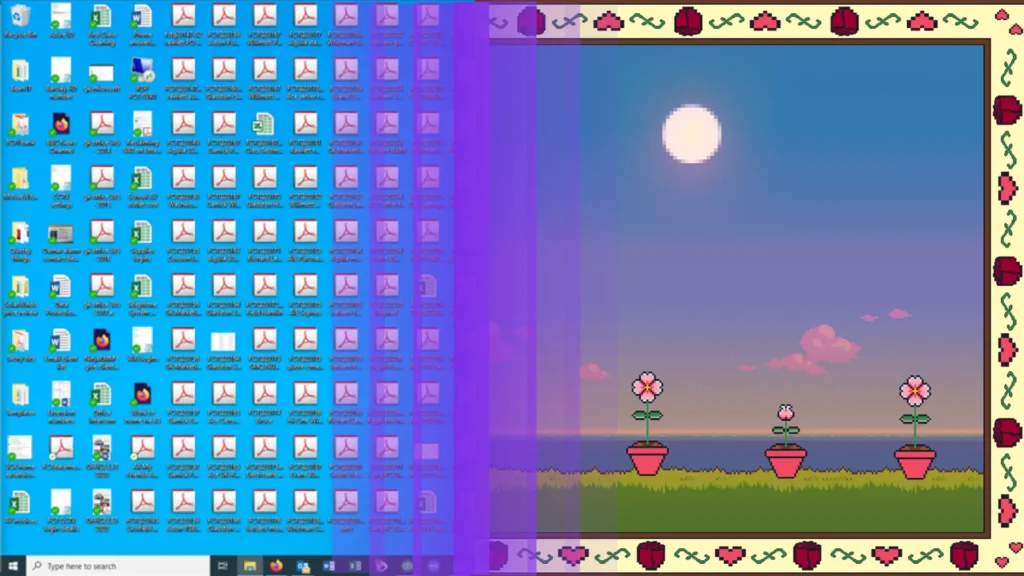
Quick answer: how do I make my desktop aesthetic? Clear your desktop icons, pick a 3-color palette, and set a wallpaper that matches it. Then restyle your icons, tidy the taskbar, and add one or two decorative touches like a widget or a desktop pet. Steps 1-5 are free in Windows settings, and most people can finish in under an hour. You got this, queen! (But definitely still read this guide for more detail.)
1. Start With a Clean Slate
The fastest way to make your desktop suit your aesthetic is to make space for your new design. Good desktop organization is the best way to make your wallpaper and decor really shine. And besides, no amount of styling can make up for, like, 42 scattered icons (LOL).
Start with any of these three easy moves:
1: Hide All of Your Desktop Icons
Right-click an empty spot on the desktop, choose View, and uncheck Show desktop icons. Your files will stay exactly where they are; they’re just out of sight.
2: Group Your Icons
If you want to keep your favorite shortcuts visible, you can group them together in a corner or column so they’re out of the way. Move the rest into a folder to create more space.
3: Clear Out Your Downloads and Recycle Bin
It’s not as visible as the other two options, but clearing unnecessary files is still important for a truly tidy space. Delete any files you don’t need and move the rest into organized folders.
2. Pick Your Preferred Aesthetic and Color Palette
One major factor in making a cute desktop look cohesive is color choice. Pick a mood or vibe first, then choose about three colors from it: One background color, one main color, and one accent color. You’ll reuse those three colors in the following steps (and sometimes you can mix in a few others, if you’re feeling crazy or whatever. It’s your life! Go wild, queen.)
If you’re not sure where to start, here are a few great ideas that aren’t biased at all:
Mood | Aesthetic | Colors |
Warm, nostalgic, cozy | Cozy Pixel Art | Warm peach, soft gold, deep plum |
Calm, late-night study vibes | Lo-fi Night | Amber, lavender, navy |
Soft, cheerful, cute | Cottagecore | Cream, baby pink, mint |
Cool, focused, expressive | Cyberpunk | Midnight blue, electric pink, magenta |
Want a useful test? If you can describe your desktop in three words (“cozy, warm, relaxing”), every choice gets easier. When something doesn’t fit those words, sashay away! You can leave it out.
Want more ideas? See our guide to cozy pixel art desktop ideas, coming so so soon!
3. Choose a Wallpaper That Sets the Mood
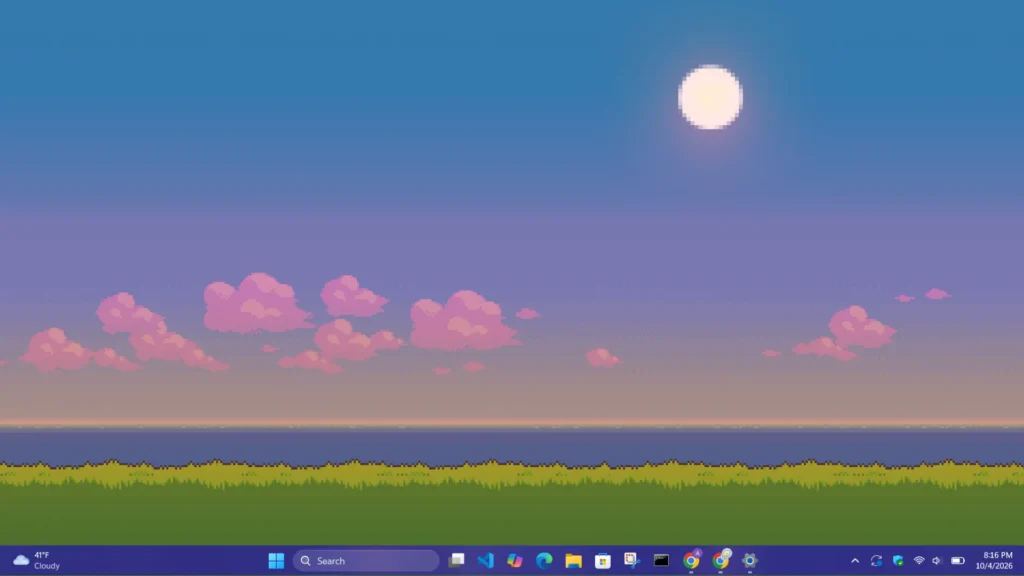
Your wallpaper is the biggest aesthetic surface on an Windows 11 desktop, so choose it before anything else that sits on top of it. Look for one that uses your palette and has a calm, open area where icons and decor won’t fight with the image.
To set it, go to Settings -> Personalization -> Background and choose Picture. Set Choose a fit for your desktop image to Fill so it covers the screen without stretching.
Static Wallpaper, or Animated?
Static wallpapers are simple, use no extra resources, and are easiest to match with icons and decor.
Animated wallpapers add gentle motion, like falling rain or a flickering lamp. Windows doesn’t really support these on its own, so you’ll need a wallpaper app such as Lively Wallpaper (free) or Wallpaper Engine (paid).
Want Some Tips for Picking Your Image Well?
Match the image resolution to your screen (for example, 1920×1080 or 2560×1440) so it stays sharp.
Pixel art looks best at exact multiples of its original size; blurry pixel art usually means it was scaled unevenly.
If you use two monitors, pick one image that spans both or two that share a palette to keep everything cohesive.
4. Swap in Aesthetic Desktop Icons
Aesthetic desktop icons replace the default Windows icons with ones that match your palette, so the few shortcuts you keep can look like part of the design. Windows uses the .ico file format for icons, and you can change them without any extra software (#yas #slay #lovethat).
To Change a Shortcut’s Icon:
1: Right-click the shortcut and choose Properties.
2: On the Shortcut tab, click Change Icon.
3: Click Browse, select your .ico file, and click OK, then Apply.
To change a folder’s icon: right-click the folder, choose Properties -> Customize -> Change Icon, and browse to your file. That’s all!
A Few Tips, Just for You:
Keep every icon in one style. Mixing pixel icons with glossy 3D ones will break the look faster than anything else.
Store your .ico files in one permanent folder. If you move or delete them later, the icons revert to blank. Believe me, it’s annoying to find them again.
Have a PNG instead of an ICO? Free online converters will turn it into an .ico file in seconds. Isn’t that just lovely? Isn’t that wonderful?
5. Customize Your Windows 11 Taskbar and Start Menu
The taskbar is on your screen all day, so a few small changes here make the whole Windows 11 desktop feel customized. All of these settings can be found under Settings -> Personalization.
| What to Change | Where to Find It | How it Helps |
| Dark/Light Mode | Personalization -> Colors -> Choose your mode | This sets the base tone for windows, menus, and the taskbar. |
| Accent Color | Personalization -> Colors -> Choose your mode | Pick the accent from your palette. To show it on the taskbar, turn on “Show accent color on Start and taskbar.” (This does require dark mode to be active, sorry to the light mode baddies!) |
| Taskbar Alignment | Personalization -> Taskbar -> Taskbar behaviors -> Taskbar alignment | Left alignment feels more classic; centered feels more modern. |
| Auto-Hide the Taskbar | Personalization -> Taskbar -> Taskbar behaviors | This will hide the taskbar until you move your mouse to the bottom, leaving a clean screen the rest of the time. |
| Fewer Taskbar Buttons | Personalization -> Taskbar -> Taskbar items | Turn off Search, Task view or Widgets if you don’t use them for an uncluttered look. |
| Start Menu Layout | Personalization -> Start | Choose more pins if you like, or fewer recommendations for a tidier menu. |
You can unpin any taskbar apps you rarely open by right-clicking them and choosing Unpin from taskbar. A clean screen is soon to be yours, queen!
6. Add Widgets and Frames (AKA Digital Decor)
Digital decor is what turns a tidy desktop into a decorated one. It’s the on-screen version of desk decor: small visual pieces like frames, clocks and timers that sit on top of your wallpaper, the way a lamp or a plant sits on a real desk. You can read more about what digital decor is in our beautiful blog all about it!
The rule for aesthetic desktop widgets is the same as for real decorations: two or three pieces placed well look better than ten scattered everywhere (Unless that’s the look you’re going for, of course, shoutout to the eclectic baddies, I see you and I appreciate your work, #livelaughlove).
Frames:
A frame gives your desktop a focal point, like a framed print on a wall. Choose one that draws in your eye, and leave open space around it. Our aesthetic desktop frame adds a glowing pixel border that can really pick up your accent color.
Useful Widgets:
The best decor also does a job. A focus timer on your desktop reminds you to work in short, calm sessions instead of opening yet another browser tab. The aesthetic Pomodoro flower timer widget sits on your desktop in the same pixel style as the rest of your setup. The flower grows as the timer counts down, allowing you to watch time pass organically.
If distraction is the real problem, we’re working on a guide to building a distraction-free desktop that goes further into this topic. Be on the lookout for that soon!
7. Bring It to Life With a Desktop Pet
A ‘desktop pet’ is a small animated character that lives on your screen while you work, walking along the taskbar or resting on top of your windows. It’s the one piece of decor that moves on its own, which is why it makes a desktop actually feel cozy instead of just neat.
Desktop pets have actually been around in some form since the 1990s, and they’re popular again because they add personality without adding clutter. A good one stays out of your way, reacts when you interact with it, and matches the style of the rest of your setup.
What To Look For:
1: A Style That Fits Your Aesthetic:
A pixel art pet suits cozy and retro setups; a soft pastel one suits a more cottagecore look.
2: Low Resource Use:
Your desktop pet should run quietly in the background without slowing down your PC.
3: A Trustworthy Source:
Download from the developer’s own site or a known store. Stay cautious when downloading software from anywhere, and please verify it’s coming from a trustworthy source!
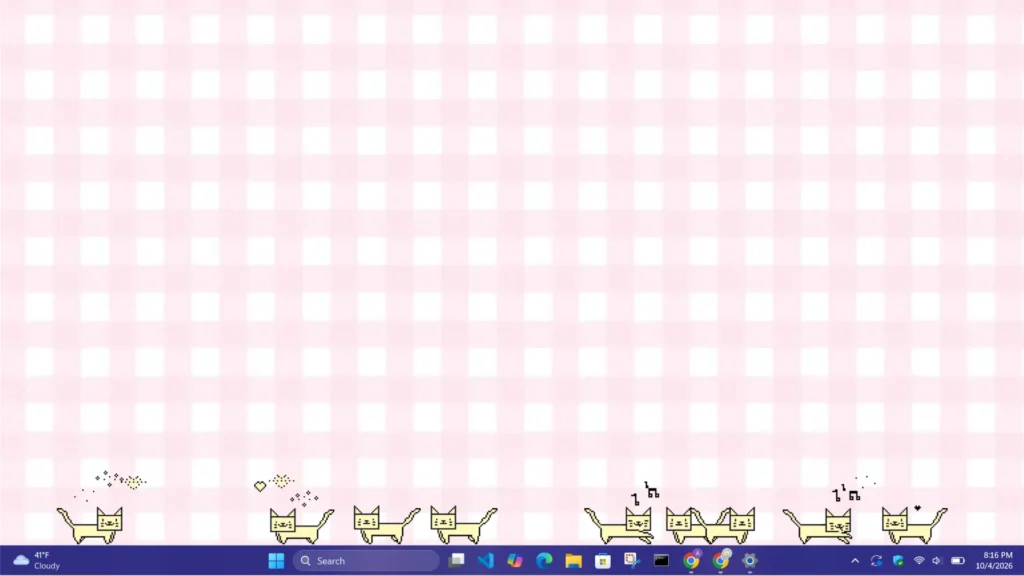
One of our pixel art desktop pets is a little cat named Cici who wanders your desktop in the same pixel style as our frames and widgets. She walks, stretches, cleans her paws, plays with other pets, and can even say certain messages. (She’s so cute omg please go check her out, ok bye thank yewww!)
Curious how they work? Read what a desktop pet is in our soon-to-be-published guide on all things Desktop Pet.
8. Put It All Together: Three Example Setups
A cute desktop setup comes together when every layer uses the same palette: wallpaper, icons, taskbar, decor and pet. Here are three complete recipes you can copy, because I am just so generous, almost to a fault, really. Go ahead! Take them! Take them all! (Can you tell I’m exhausted while writing this LOL?)
Cozy Pixel Art
Palette: deep plum, warm peach, soft gold
Wallpaper: a pixel art bedroom or café at sunset
Icons: hidden, or 4 pixel icons in the top-left
Taskbar: dark mode, gold accent, left-aligned
Decor: Cottagecore Frame + Coco the Chicken Pet
Lofi Study Night
Palette: navy, dusty lavender, amber
Wallpaper: a rainy window or night city, animated if you like
Icons: hidden
Taskbar: dark mode, lavender accent, auto-hide on
Decor: Pomodoro Flower Timer Widget + Cat Pet
Soft Minimal
Palette: off-white, warm gray, charcoal
Wallpaper: a plain textured background or soft gradient
Icons: 3 monochrome icons in one column
Taskbar: light mode, centered, Search and Widgets turned off
Decor: Sunflower Sticky Note Widget
Want every piece at once? Our bundles combine the pet, frames and widgets in one matching set, so the last layer of your setup takes one download. It’s so convenient, and this is totally a product placement, so why don’t I quit wasting your time and give you the link? #honestyisthebestpolicy
9. FAQ
How do I make my desktop aesthetic?
Pick a 3-color palette, set a matching wallpaper, hide or restyle your icons, and add one or two decorative touches like a widget or a desktop pet. Most of this takes under an hour using Windows’ built-in Personalization settings.
How do I hide desktop icons on Windows 11?
Right-click an empty spot on the desktop, choose View, and uncheck “Show desktop icons.” Your files stay where they are; they’re just hidden until you turn the option back on.
How do I change my desktop icons to aesthetic ones?
Right-click a shortcut, choose Properties, then Change Icon, and browse to an .ico file. For folders, use Properties -> Customize -> Change Icon. Use icons that share your palette so the screen feels cohesive.
How do I move the Windows 11 taskbar icons to the left?
Open Settings -> Personalization -> Taskbar -> Taskbar behaviors, and set Taskbar alignment to Left. You can also turn on “Automatically hide the taskbar” there for a cleaner screen.
What is a desktop pet?
A desktop pet is a small animated character that lives on your screen, walking along the taskbar or sitting on your windows while you work. It’s a lightweight program rather than a wallpaper, so it can move and react to you.
Do desktop pets slow down your computer?
A well-made desktop pet uses very little memory or processing power. The Pixel Haven Cici the Cat pet typically uses about 180MB of RAM and 3% CPU while running, measured in Task Manager on Windows 11, 8 GB RAM. Our pets, frames, and widgets all run using the same environment, so running them all together only scales the memory usage up to less than 10% in most cases.
Are desktop pets safe to download?
They’re safe when they come from a source you trust, such as the developer’s own site or a known store. Pixel Haven’s installer is downloaded directly from your order page after purchase. Windows may show a SmartScreen notice for apps from smaller developers; only click More info -> Run anyway if you trust the code’s source.
Can I make my desktop aesthetic for free?
Yes. Wallpaper, icons, taskbar, accent colors and dark mode are all free in Windows settings. Widgets, frames and desktop pets are the optional layer on top.
Make Your Desktop Feel Like Yours
An aesthetic desktop doesn’t need a full overhaul: clear the clutter, choose a palette, and let a few well-placed pieces do the rest. Start with the free steps today, and when you’re ready for the finishing touch, our bundles bring the pet, frames and widgets together in one matching set.